> ## Documentation Index
> Fetch the complete documentation index at: https://padelapi.org/docs/llms.txt
> Use this file to discover all available pages before exploring further.
# Install in ChatGPT via MCP
> Install Padel Analyst in ChatGPT to query professional padel data in your conversations. Step-by-step guide using Developer mode for Plus and Pro users.
This guide shows you how to install Padel Analyst in [ChatGPT](https://chatgpt.com), allowing you to query professional padel data directly in your conversations.
**There's a shorter route.** [Install the Padel Analyst app](/docs/padel-analyst/chatgpt-plugin) instead: you sign in with your Padel API account, there's no token to configure, and it works on ChatGPT's free plan. Follow this guide only if you'd rather set up the MCP server yourself.
## Prerequisites
Before you begin, make sure you have:
MCP connectors require a ChatGPT Plus or Pro subscription
Get your token from the [API Tokens](https://padelapi.org/user/api-tokens) page
## Installation Steps
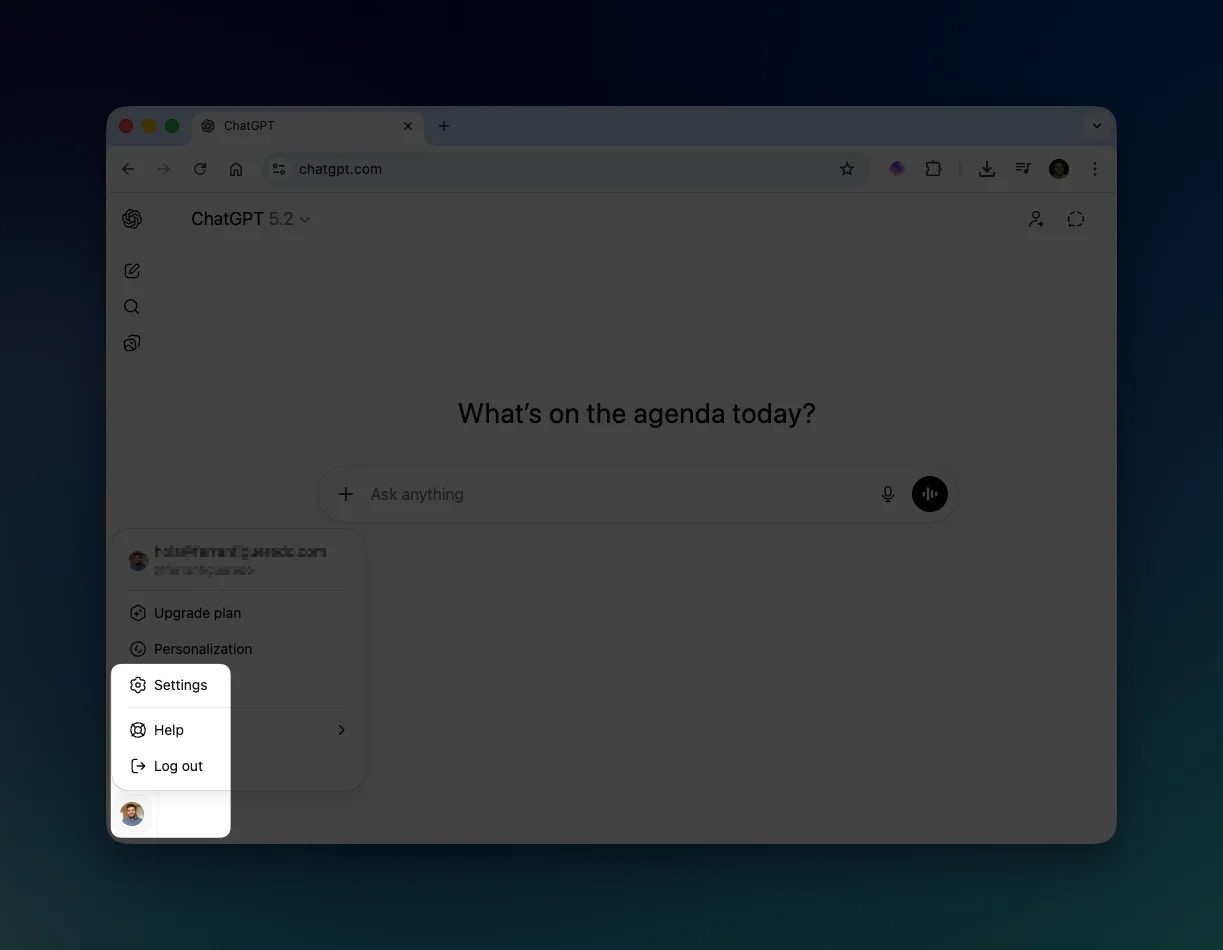
Click on your profile icon in the bottom-left corner of ChatGPT and select **Settings** from the menu.
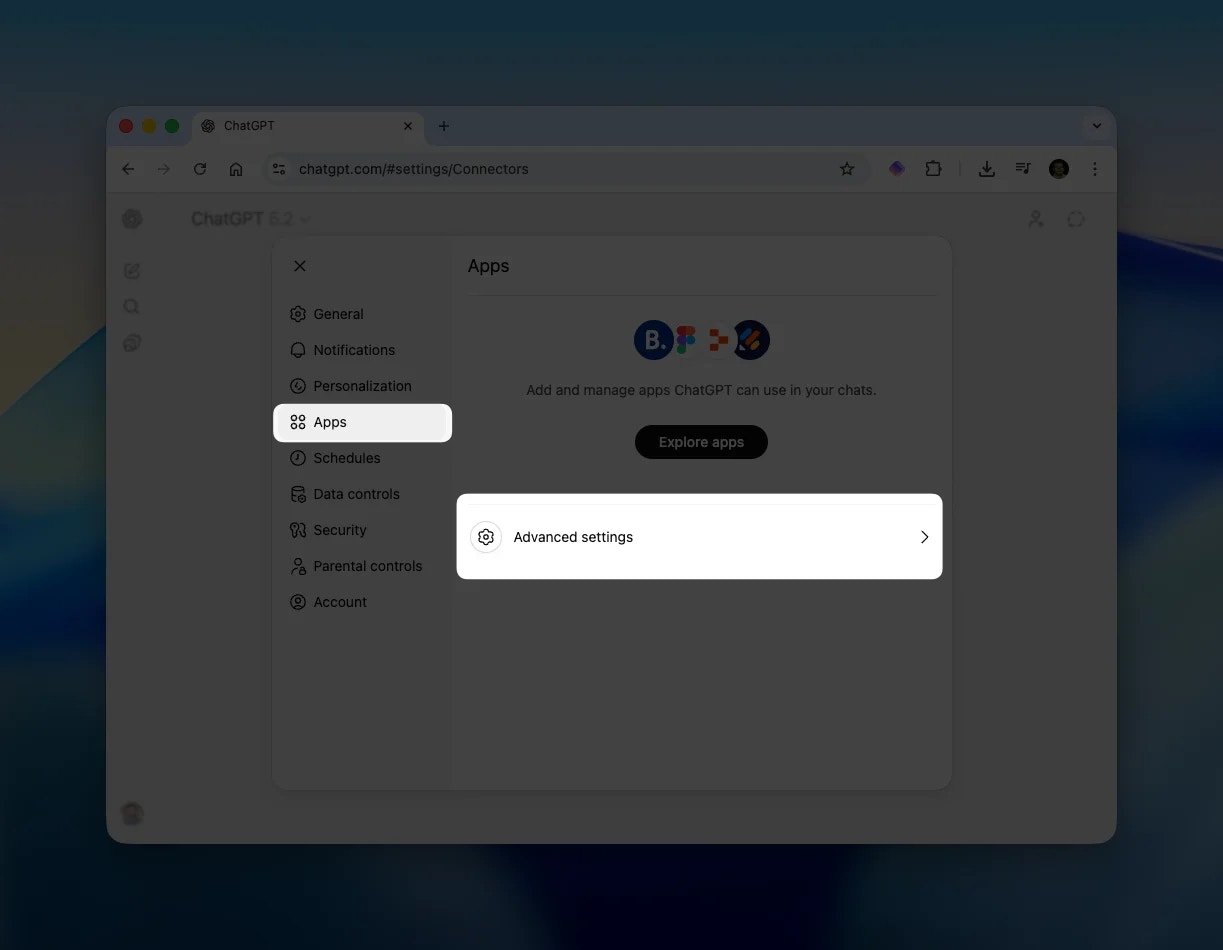
 In the Settings panel, click on **Apps** in the left sidebar. Then click on **Advanced settings**.
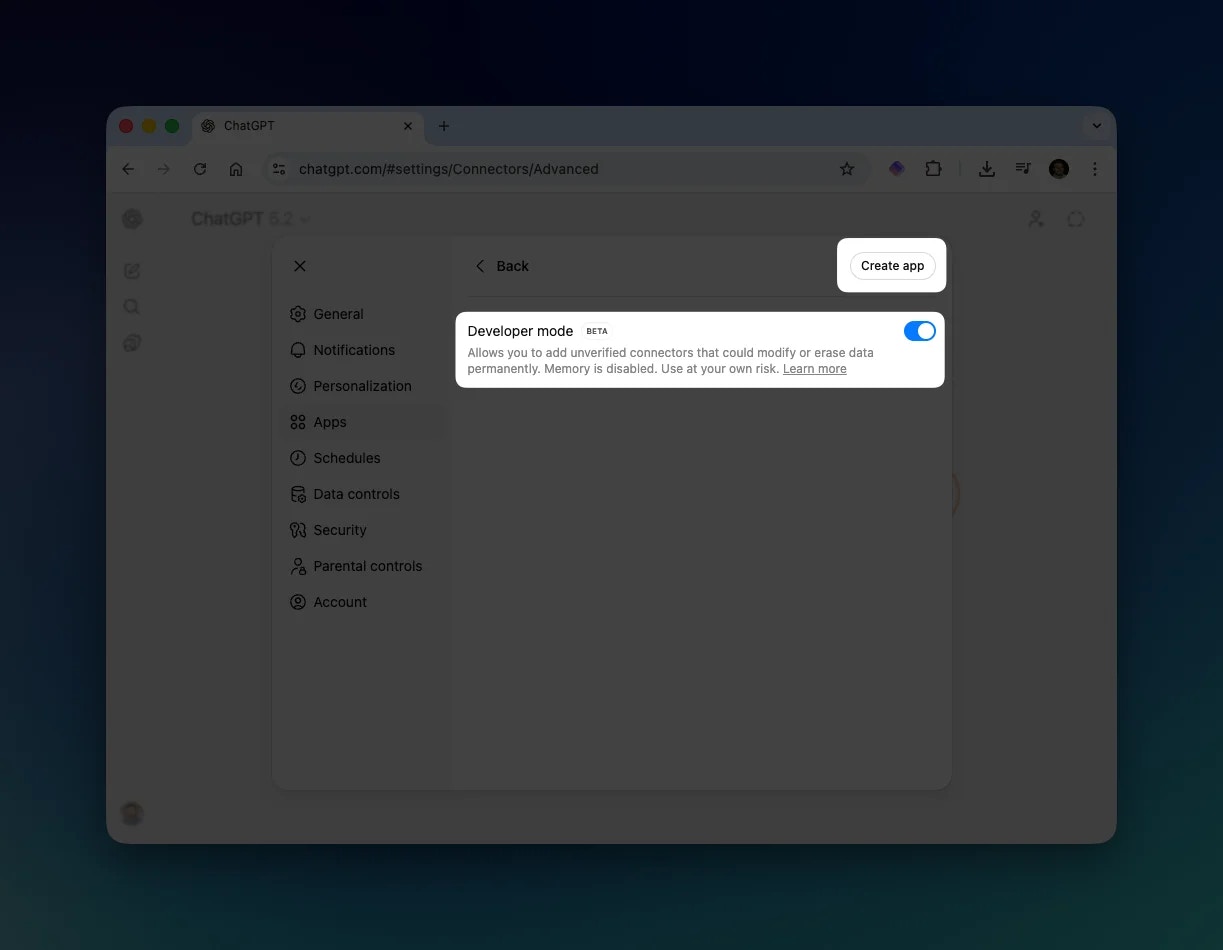
 Toggle **Developer mode** to enable it. This allows you to add custom MCP servers to ChatGPT.
Then click the **Create app** button in the top-right corner.
Toggle **Developer mode** to enable it. This allows you to add custom MCP servers to ChatGPT.
Then click the **Create app** button in the top-right corner.
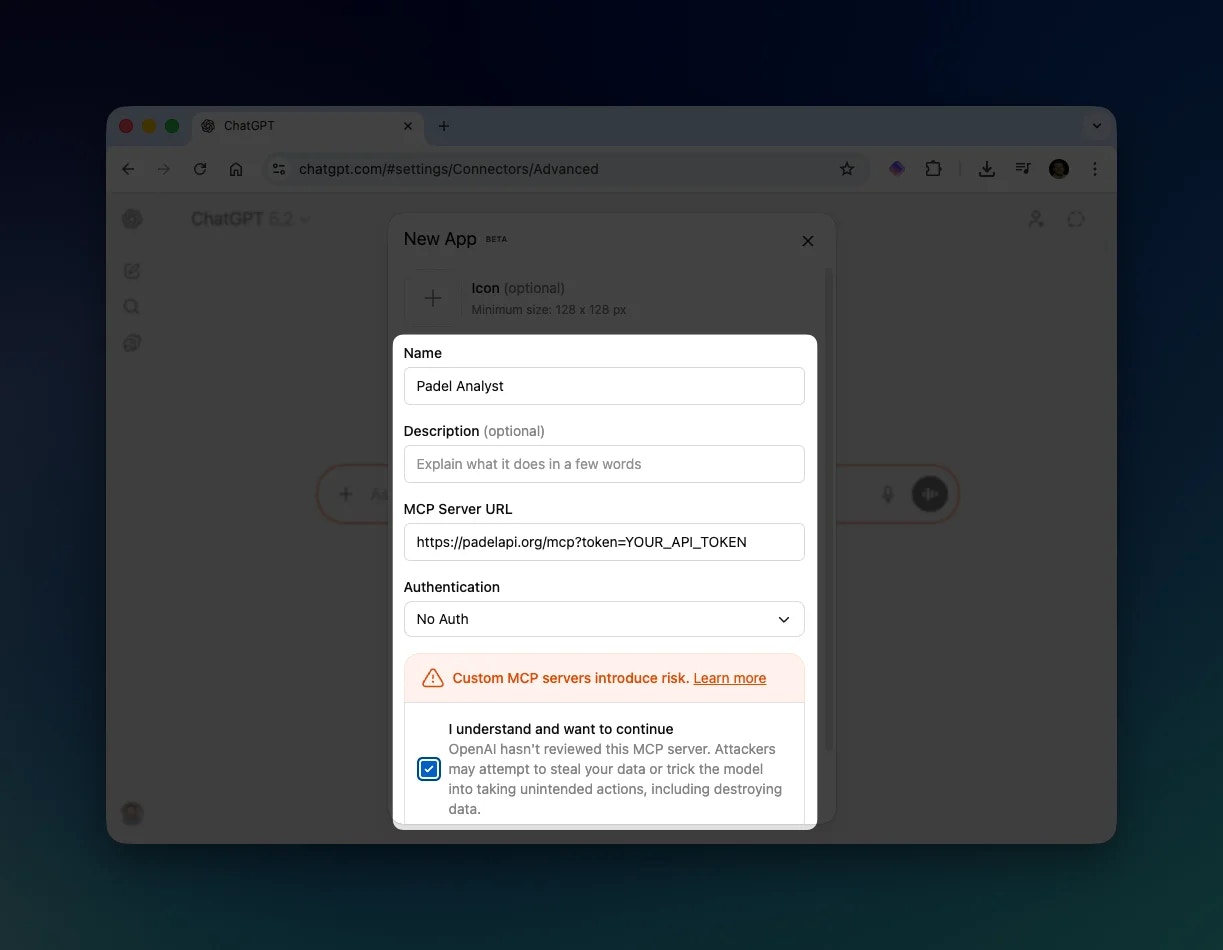
 In the "New App" dialog, enter the following details:
| Field | Value |
| ------------------ | ----------------------------------------------- |
| **Name** | `Padel Analyst` |
| **MCP Server URL** | `https://padelapi.org/mcp?token=YOUR_API_TOKEN` |
| **Authentication** | `No Auth` |
Replace `YOUR_API_TOKEN` with your actual API token from the [API Tokens page](https://padelapi.org/user/api-tokens).
Check the box **"I understand and want to continue"** to acknowledge the warning about custom MCP servers.
Click **Save** to add the connector.
In the "New App" dialog, enter the following details:
| Field | Value |
| ------------------ | ----------------------------------------------- |
| **Name** | `Padel Analyst` |
| **MCP Server URL** | `https://padelapi.org/mcp?token=YOUR_API_TOKEN` |
| **Authentication** | `No Auth` |
Replace `YOUR_API_TOKEN` with your actual API token from the [API Tokens page](https://padelapi.org/user/api-tokens).
Check the box **"I understand and want to continue"** to acknowledge the warning about custom MCP servers.
Click **Save** to add the connector.
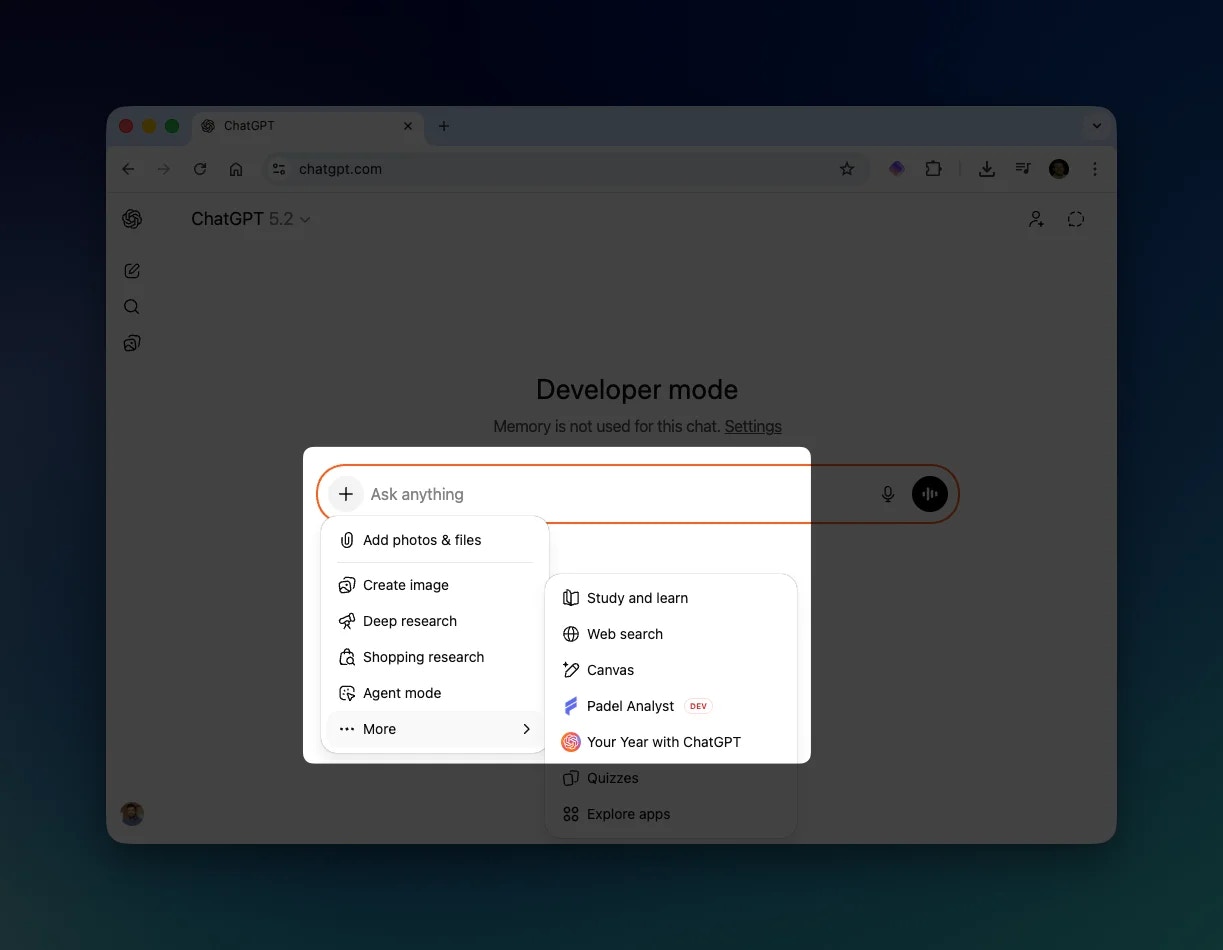
 In any chat, click the **+** button next to the message input. Navigate to **More** and select **Padel Analyst** from the list.
 ## Using Padel Analyst
Once enabled, you can ask ChatGPT questions about professional padel. ChatGPT will automatically use Padel Analyst tools to fetch the data.
### Example Response
Here's an example of ChatGPT fetching match data using Padel Analyst:
## Using Padel Analyst
Once enabled, you can ask ChatGPT questions about professional padel. ChatGPT will automatically use Padel Analyst tools to fetch the data.
### Example Response
Here's an example of ChatGPT fetching match data using Padel Analyst:
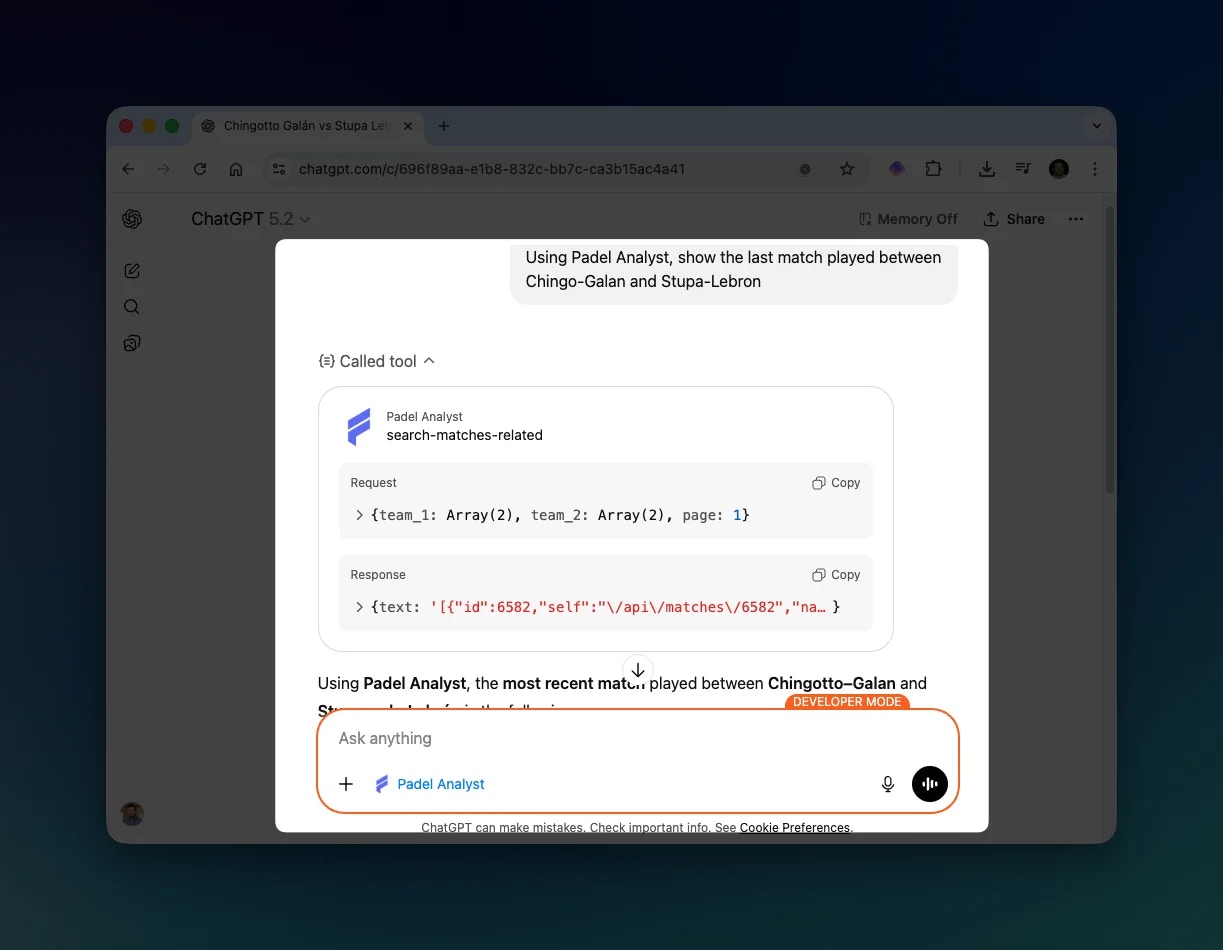 You can expand the "Called tool" section to see the exact request and response from the Padel API.
## Example Questions
Try asking ChatGPT questions like:
* "Who won the last Premier Padel Major?"
* "Show me the head-to-head between Lebron/Galan and Coello/Tapia"
* "What are Arturo Coello's statistics this season?"
* "List all P1 tournaments in 2025"
* "Simulate a match between the top two ranked pairs"
## Troubleshooting
Make sure you have a ChatGPT Plus or Pro subscription. Free accounts don't have access to Developer mode.
Verify that your API token is correct and included in the MCP Server URL. The token should be passed as a query parameter: `?token=YOUR_API_TOKEN`
Make sure Developer mode is enabled and that you saved the app correctly. Try refreshing the page.
## Next Steps
See all 12 tools available for querying padel data
Explore the full REST API behind Padel Analyst
You can expand the "Called tool" section to see the exact request and response from the Padel API.
## Example Questions
Try asking ChatGPT questions like:
* "Who won the last Premier Padel Major?"
* "Show me the head-to-head between Lebron/Galan and Coello/Tapia"
* "What are Arturo Coello's statistics this season?"
* "List all P1 tournaments in 2025"
* "Simulate a match between the top two ranked pairs"
## Troubleshooting
Make sure you have a ChatGPT Plus or Pro subscription. Free accounts don't have access to Developer mode.
Verify that your API token is correct and included in the MCP Server URL. The token should be passed as a query parameter: `?token=YOUR_API_TOKEN`
Make sure Developer mode is enabled and that you saved the app correctly. Try refreshing the page.
## Next Steps
See all 12 tools available for querying padel data
Explore the full REST API behind Padel Analyst